

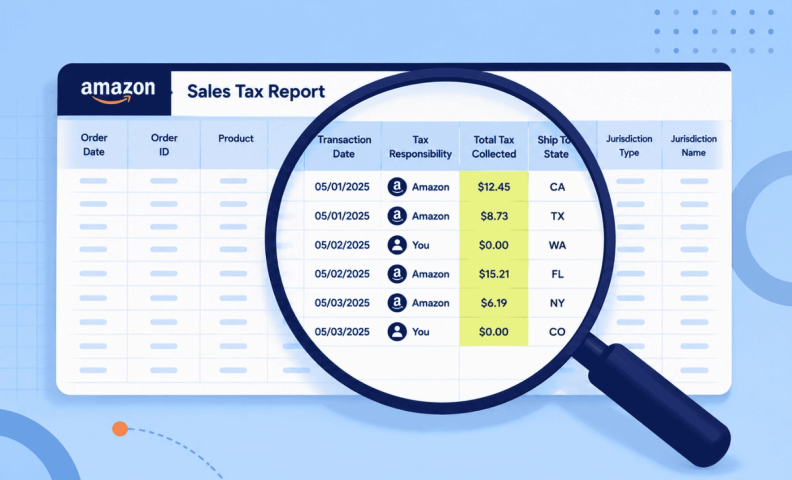
Before we get started, here's some good news: thanks to marketplace facilitator laws, Amazon is responsible to collect and remit sales tax for its sellers in all states that require sales tax. But you're not entirely off the hook yet. Be aware that most states count sales from marketplaces, like Amazon, AND other sites, like Shopify, toward their economic nexus thresholds. This means that if you also sell on a non-marketplace site, you need to include your Amazon sales in your sales totals for each state.
What is an Amazon sales tax report?
The Amazon sales tax report shows how much sales tax Amazon collected from your customers for each transaction. It provides a breakdown of the taxes collected by 4 jurisdiction types:
- State
- City
- County
- Special district
It will look daunting at first, especially since each transaction takes up at least 3 rows, sometimes more. But we'll walk you through it, pointing out which ones you ACTUALLY need to pay attention to for sales tax (it's less than 10!).
How to find & export your Amazon seller sales tax report
You'll find your Amazon sales tax reports in Seller Central, under Reports > Tax Document Library. From there you can view reports Amazon has already generated or generate a new one. Since Amazon periodically updates this part of Seller Central, its Tax Document Library page will always reflect the current navigation, so we're pointing you there instead of a click-by-click walkthrough that could go stale.
When you generate a report, you'll choose from three report types, and it's important to know the difference:
- Sales tax calculation report: This report shows YOUR sales tax liability. This is YOUR responsibility, as the seller, to report & remit
Note: Alaska, Delaware, Montana, New Hampshire, and Oregon (sometimes called NOMAD states) do not have states sales tax. However, Alaska has a local sales tax and Montana has a local resort tax, so you may be responsible to remit tax in certain cities. Also, you may have sales tax responsibilities in US regions, like Guam.
- Marketplace tax collection report: This report shows AMAZON'S sales tax liability. It is AMAZON'S responsibility to report & remit this.
- Combined sales tax report: One place to see it all!
Choose your reporting date range based on what you need:
- If you're doing a monthly sales tax filing, choose the previous month.
- If you're doing a nexus analysis, choose the previous 12 months (called a trailing 12) or the previous year.
Once your report finishes generating, you'll find it listed under Sales Tax Reports, ready to download. For an updated list of economic nexus thresholds and effective dates by state, download our Sales Tax Compliance Checklist. There is an appendix at the end with all this information.
Breakdown of key information in your Amazon sales tax report
It's important to understand the key information contained within your Amazon seller sales tax report. Amazon provides a helpful summary of what to look for in its reports which includes:
- Sales breakdown by transaction type
- Tax collected on those transactions
- Total amount due to respective state
- Product and Shipping charges assigned to individual customers
- Return & Refund breakdown details for sales made during the period
- Any applicable processing fees
Learning to read your Amazon sales tax report
This report has LOTS of columns, and it can be incredibly confusing if you don't know what you're looking for. We've broken it down and pointed out which ones you need to pay attention to, at least for your sales tax compliance.
Quick Excel tip: To easily expand all the columns so you can read the headings, click on the triangle in the top left corner of the spreadsheet to highlight the entire spreadsheet. Then double click on the right line of any of the lettered column headers (like A or B, etc.) to automatically expand all the columns.
Transaction details
The most important info here is the:
- Order date: When the order was placed by the customer
- Shipment date: When the order was sent by the seller
- Posted date: When the order was received by the shipping company (these last 2 will be pretty close to each other.)
Note: It doesn't really matter which one you use for your accounting purposes. Just be sure to be consistent to minimize confusion with your revenue reporting. For our customers, we usually use Posted Date.
Marketplace details
The most important info here is:
- Tax collection model: Shows if a Marketplace Facilitator is responsible for remitting tax or not
- Tax collection responsible party: Shows exactly which party is responsible
Click on the down arrows to filter the data. When the filter on column M is on Marketplace Facilitator, the responsible party is Amazon. When it is set for Standard, the responsible party is the Seller. This is a transaction YOU need to report.
Product & tax detail
This area gives details about the product selling price and the tax collected. The most important column to pay attention to is Total Tax (column X). This is the seller's sales tax responsibility to remit to the states.
Note: When you click on the whole column to highlight it, you'll see the sum total listed at the very bottom of your screen.
Shipping details
The next part shows where your inventory was shipped from and shipped to. With ecommerce, the sales tax is usually determined by where the item is shipping TO, not from. In other words, the 'Ship To' address determines the sales tax rate, not the 'Ship From'.
Here's an interesting tidbit: Remember the 4 jurisdictions mentioned earlier (state, city, county, and district)? That is determined by the customer's zip code. In some places, each of those has its own sales tax percentage. You can see those percentages broken out in:
- Tax amount collected by Amazon
- Taxed jurisdiction tax rate
The totals match the amount listed in Total Tax.
How to use the Amazon seller sales tax report to remit sales tax correctly
We get a lot of questions about how to report sales tax collected by Amazon. Since every state with state-wide sales tax laws already has marketplace facilitator laws in place, you won't need to do this part if you only sell in the US and on Amazon. However, if you sell on other channels as well, you definitely want to read this next part because it's vital when doing a nexus analysis to be able to determine where you have economic nexus.
Opening a pivot table will allow you to summarize by state how much you've collected in sales tax and need to remit. Before you panic wondering what a pivot table even is, don’t worry. We're going to show you how to set one up. This part is not in the original YouTube video, but hopefully the screen shots and explanations will make it easy to understand.
Before we continue, you may be asking “What is a pivot table?” It is a summary of your data, packaged up nicely in an easy-to-read chart so you can see at a glance what you need to see.
Preparing to create a pivot table
This is a several-step process, but it's straightforward. Before you can create the pivot table, though, there are a few steps you need to do first. It's important to remember that the Ship To State is associated with the state, city, county, and district jurisdiction info.
Remember how we said at the beginning of this blog that each transaction takes up at least 3 rows. This is why. Because of this, you need to make sure that all the orders are associated with the correct state, even if not all the cells are filled in column AG. To make sure everything is associated correctly, temporarily insert a new column. Label it 'MODIFIED Ship_To_State'.
Note: To help you remember that it's modified, you can make it a different color to differentiate it from the rest of the report.
Enter conditional formatting in the first cell of the modified column (column AH here) by typing in: =if(AG2=0,AH1,AG2)
This means that if a state is specified in column AG, put it in AH. If a state is not specified in AG, go up to the next state that is specified and add that to column AH. This will result in the first cell in the column filling in with the correct state. To auto-fill the rest of the column, left-click and hold the small square in the bottom right-hand corner of the cell, then drag it down through the rest of the column.
All the columns will now have the correct states filled in. You're all set and ready to create your pivot table!
How to create a pivot table
Highlight the entire table by going up to the very top left corner of the table and clicking on the gray triangle. (You did this earlier to expand all the column headings.) Don't forget this step! You'll be very confused if you do.
Scroll to the top of the page and click on 'Insert'. Then click on 'Pivot Table' on the far-left side of the menu. The pivot table range will default to the entire table. That's good. Next, choose New Worksheet for where you want the pivot table placed. Click OK. Your shiny new pivot table will pop up. Label it Amazon Pivot Table so you know what you're looking at when you come back to it later.
Summarizing the data with your pivot table
Now you're ready to start summarizing data. This is where you decide which rows and columns you want included in the table. On the right side of the worksheet, you'll see a list of fields, as well as boxes down below that you can drag and drop your selected fields into.
1. Under Rows, drag and drop MODIFIED Ship_To_State (this is so your rows can be labelled with the correct states).
2. Under Values, drag and drop:
- Tax exclusive selling price (the cost of the products being taxed)
- Tax amount (the amount actually taken out for taxes)
- Tax amount collected by Amazon (to make sure they didn't collect anything for the states you have listed)
Once you've dragged those three fields into Values, you'll have a table that summarizes exactly how much you collected and remitted in each state. There are plenty of other ways you can filter this pivot table and get other information you may need, but this is the basics of what you need.
Tips for navigating your Amazon sales tax report with ease
Understanding your Amazon Sales Tax Report should be a straightforward process, but it can still be overwhelming at first. In summary, here are some tips to help make this process easier:
- Read the report thoroughly before filing
- Make a pivot table to summarize the data
- Look out for potential errors
Frequently asked questions
Do I need to report sales tax from Amazon?
No, Amazon is collecting and remitting sales tax for all states that have state wide sales tax and marketplace facilitator laws. There are 5 states that do not have these laws: Alaska, Delaware, Montana, New Hampshire, and Oregon (sometimes called NOMAD states). However, Alaska has a local sales tax and Montana has a local resort tax, so you may be responsible to remit tax in certain cities. Also, you may have sales tax responsibilities in US regions, like Guam.
Does Amazon file sales tax returns for sellers?
Yes, Amazon files sales tax returns on behalf of sellers.
Do I need a sales tax permit if I sell on Amazon?
No, but you should at least have one in your own state. For more information on registrations, read How to Register for a Sales Tax Permit in the US – What You Need to Know.
Do I need an EIN to sell on Amazon?
Yes, or a SSN if you are a sole proprietorship. If you are non-US-based seller, we recommend you download our guide 5 Steps International Sellers Must Take BEFORE Applying for a US Sales Tax Permit.
Does Amazon 1099 include sales tax?
No, it does not. It only includes your net (taxable) income. For more information, watch our video Amazon 1099 vs Financial Statement Activity | Amazon Bookkeeping Tips.
Does Amazon collect sales tax for sellers?
Yep, and it files the sales tax, too. Phew!
Get help with sales tax compliance
Amazon may collect and remit sales tax for marketplace sales, but that doesn’t necessarily take sales tax compliance off your plate. If you sell through other channels, you still need to know where you have economic nexus, where you need to register, and whether your filings are accurate and on time.
LedgerGurus helps ecommerce businesses manage the entire sales tax process, including nexus analyses, registrations, non-marketplace channel setup, and sales tax filing and remittance. If you’re tired of sorting through sales tax rules and reports yourself, our sales tax team can help you stay compliant without adding another monthly task to your list.
