

As your ecommerce business expands, tracking your financials gets exponentially more complex. Two areas where this becomes especially important:
- When you start selling on multiple channels (Amazon, Shopify, eBay, and more)
- When you start selling product in multiple countries
At this point, we recommend investing in software that can track the financial details of each channel and plug that information directly into your bookkeeping software's chart of accounts (QuickBooks Online, Xero, and others). Our favorite for this is A2X.
What does A2X do?
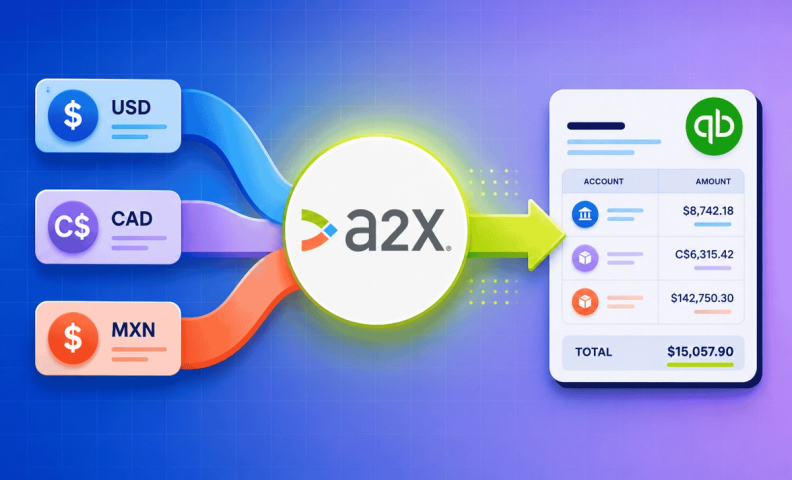
A2X is a "go between" tool that gathers and filters your ecommerce transaction data. It takes the ambiguity out of net deposits by showing where every dollar came from and went, line by line. Remember: net deposits do not equal net sales. Shipping fees, sales tax collected, rebates, and refunds all affect your net deposit, and all need to be tracked accurately.
If you're setting up A2X for the first time, see our guides to connecting A2X to Amazon and connecting A2X to QuickBooks Online.
To watch an in-depth walkthrough of A2X, check out our tutorial Amazon Accounting Software A2X | The Whys and the Hows.
How does A2X work with foreign currency transactions?
One especially useful A2X feature is foreign currency transaction tracking. If you're based in the U.S., your business deposits from a channel like Amazon will only show up in QuickBooks in U.S. dollars. Matching the correct deposit to its corresponding Amazon transaction becomes a real headache, especially with multiple deposits of similar amounts landing in the same time period.
A2X solves this by showing transaction details in both U.S. dollars and the local "home currency" where the transaction actually took place, so you can quickly identify which deposit matches which transaction.
How to set up foreign currency transaction tracking in A2X
Below is a breakdown of how to set up foreign currency transaction tracking in A2X. You can also view a demo in our A2X video on this topic.
Step 1: Turn on multicurrency in QuickBooks Online
If you're using multiple channels, first make sure foreign currency is set up in QuickBooks Online:
- Go to Settings (gear icon) > Account and Settings > Advanced > Currency
- Turn on "Multicurrency"
Once that's on, A2X's Settlements section will show deposits broken out by channel and country. For example, Amazon deposits ending in ".mx" are from Mexico, and those ending in ".ca" are from Canada.
Note: these deposits display in the home currency for that transaction (Mexican transactions in pesos, Canadian transactions in Canadian dollars), but the actual deposit lands in your bank in your own home currency.
Step 2: Match each deposit in your QuickBooks bank feed
- For US-based transactions: You'll see the deposit details under "Category or Match." Select "Match," and A2X's accounting line items are automatically configured into your chart of accounts.
- For foreign transactions: You may not see a match option in your default bank feed view. Switch from "Home currency" to "Foreign currency" and find the entry that matches the deposit amount. The amount may differ by a few cents due to exchange rate timing, select the closest match and click "Save," and the foreign currency rate updates automatically to reconcile it.
Once matched, all the financial detail flows into your chart of accounts automatically, saving you what would otherwise be hours of manual entry per settlement. A2X handling the currency conversion math on top of that makes it a genuinely valuable tool once you're selling internationally.
Frequently asked questions
Why is foreign currency accounting tricky for ecommerce sellers?
Because deposits from channels like Amazon show up in QuickBooks in your home currency (like USD), even when the actual sale happened in a foreign currency. Matching the right deposit to the right transaction becomes a real headache, especially when multiple deposits land close together with similar amounts.
How does A2X make foreign currency transactions easier to track?
It displays every transaction in both U.S. dollars and the local "home currency" where the sale actually happened, so you can quickly identify exactly which deposit matches which transaction.
What do I need to set up before tracking foreign currency in A2X?
Turn on Multicurrency in QuickBooks Online first (Settings > Account and Settings > Advanced > Currency). Once that's on, A2X will show settlements broken out by channel and country.
Why doesn't my foreign transaction show a "Match" option in my QuickBooks bank feed?
Because the default view only shows home currency transactions. Switch the bank feed view to "Foreign currency" to find the matching entry.
Why doesn't the deposit amount exactly match the transaction I'm trying to match it to?
Small differences, usually just a few cents, are normal and caused by exchange rate timing. Selecting the closest match and saving it automatically updates the foreign currency rate to reconcile the difference.
Does A2X work for sellers on multiple channels, not just Amazon?
Yes. A2X is built to track and organize financial data across whichever channels you sell on, Amazon, Shopify, eBay, and more, consolidating it all into your accounting software.
Let us set up your foreign currency tracking
Foreign currency accounting adds real complexity on top of everything else ecommerce accounting already requires and getting it wrong can mean hours of manual cleanup later.
If you're an Amazon and/or Shopify seller ready to get this set up correctly, we offer a package to connect A2X with your QuickBooks account and walk you through it step by step.
We know navigating foreign currency accounting can be genuinely confusing, and the stakes are real when mistakes go unnoticed. If you're feeling overwhelmed, we'd love to talk through what tools and support could help.
